Choose a candle label printer by matching the printer type to your label stock, smallest text, durability target, and monthly volume.
For most makers, inkjet fits short runs and color-heavy labels, while laser fits sharper warning text and cleaner handling on compatible label sheets. Your best choice is the one that prints cleanly on your exact label material, at your volume, with repeatable settings and acceptable waste.
What matters when choosing a candle label printer
Choose based on label stock, durability needs, small-text clarity, and your monthly volume—not brand names. Start with the label material and surface, then match printer tech and settings so the print stays readable after handling and wiping.
| Main need | Best fit to test first | What to check on your stock |
|---|---|---|
| Rich color on short runs | Inkjet | Drying time, smear risk, and edge sharpness on your finish |
| Sharp warning text and barcodes | Laser | Microtext clarity, contrast, and sheet compatibility |
| Shelf use with light handling | Paper or coated stock that prints cleanly | Whether the print stays readable after normal handling |
| Frequent wiping, condensation, or oil contact | More durable stock and print system | Whether text stays legible after wipe contact |
| Thick or synthetic label sheets | Printer with a straighter feed path | Skew, scuffing, curl, and feed reliability |
| Higher monthly volume | More repeatable printer setup | Waste rate, reruns, and time lost to setup drift |
Use your stock and finish as the first filter. Matte paper and many standard coated sheets often keep text edges cleaner, while glossy and synthetic films demand closer attention to coating, drying, and feed path.
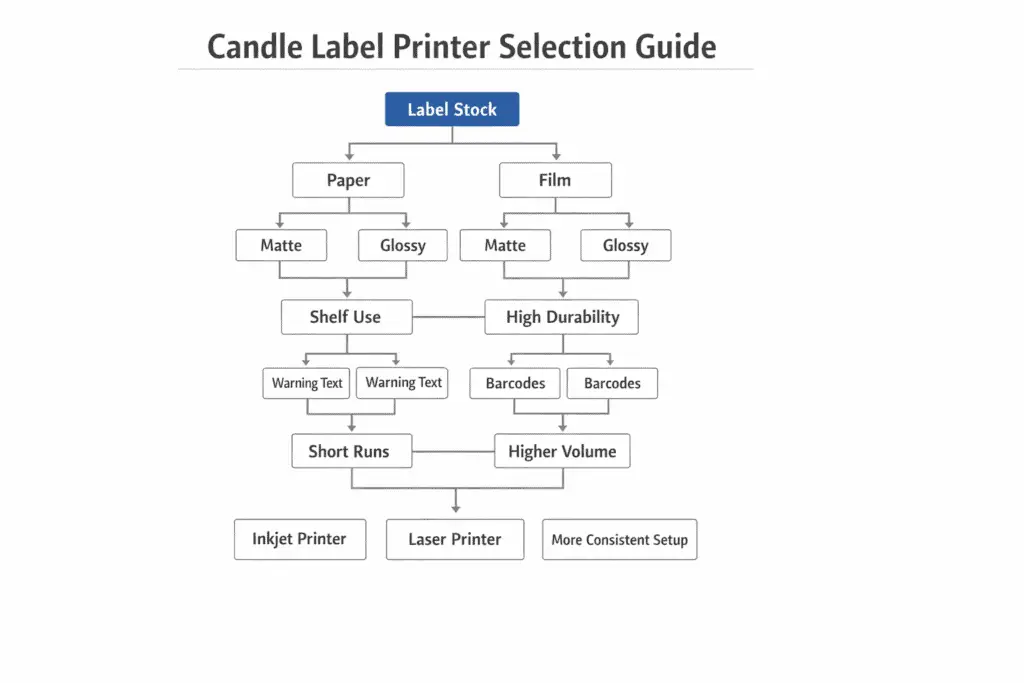
What counts as durable enough for shelf, wipe, and oil contact? Dry shelf use can work with a basic wipe-resistant setup, but frequent wiping, condensation, or oil contact push you toward more durable stocks and printer-and-media combinations that stay legible after handling.
Small warning text changes the decision fast. If your label must carry fine warnings or barcodes, favor the printer that keeps the smallest text readable on your real stock, not the one with the best product photo.
What to check first:
- Pick your label stock and finish (paper vs film, matte vs glossy).
- Decide your durability target (wipe-resistant vs water-and-oil resistant).
- Confirm your smallest warning text will stay readable on that stock.
- Estimate monthly label volume so you don’t buy for a one-time peak.
X-vs-Y: inkjet vs laser for candle labels
Inkjet wins on photo color; laser wins on crisp text and smear resistance on many coated label sheets. Choose inkjet for brand-heavy color work, and choose laser when warnings, barcodes, and batch labels must stay clean after light handling.
Inkjet lays liquid ink that can soak, spread, or smear depending on coating and drying time. Laser fuses toner with heat, which often keeps edges tighter on small text and icons, especially on matte coated sheets.
Which printer type fits your workflow?
Choose inkjet if you run short batches, change artwork often, or care most about rich color on compatible glossy or coated labels. Choose laser if your labels lean on warning text, barcodes, and cleaner handling on compatible sheets.
- Choose inkjet when color depth matters more than the tightest text edges.
- Choose laser when small text, icons, and barcode sharpness matter more than photo-style color.
- Prefer a printer with a straighter feed path if you plan to run thicker sheets or synthetic materials.
Can you use inkjet labels in a laser printer, or laser labels in an inkjet printer? No. Use only stocks rated for your printer type unless the label material is clearly marked for both.
Can a thermal printer work for candle labels? It can work for simple monochrome labels, but it is a weak fit for most professional candle labels because color limits and heat-sensitive media reduce flexibility for branded product labels.
If you need clear or metallic labels, check whether the design depends on a white layer behind the color. That requirement can narrow your printer choices fast, so treat it as a buying filter, not a late design tweak.
Quick comparison points:
- Inkjet: strong gradients and deep color; watch drying time and smear on glossy stocks.
- Laser: clean microtext and barcodes; watch heat sensitivity and curling on some label sheets.
- Either: results depend on the “right” mode and the “right” stock more than the logo on the box.
How to test small warning text before buying
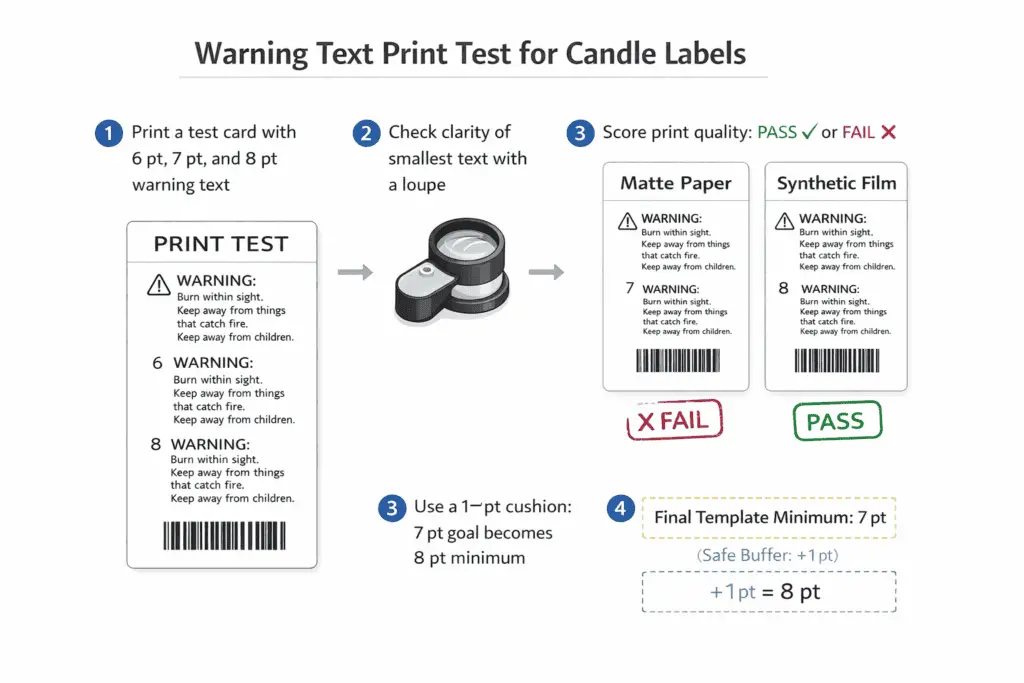
Print a 6–8 pt ladder in your highest crisp mode, inspect with a loupe, and record the smallest readable size. Lock that size into your template so warnings stay readable across reprints and new label lots.
A simple sizing process looks like this:
- Print a test card with a 6–8 pt ladder, plus your smallest icon and barcode.
- Inspect under good light with a loupe and score each line “pass” or “fail”.
- Repeat on your two most-used stocks (for example, matte paper and a synthetic film).
- Set your template minimums to the smallest “pass” size plus one step of buffer.
If a line looks fuzzy, first change only one variable at a time: print mode, driver “enhance” toggles, and paper/label setting are the usual culprits.
For durability, pigment inks usually lean safer than dye inks when labels face wiping, light, or warmer storage, while dye can still suit color-first labels on compatible glossy stocks.
If you plan to use thick, curled, or slick label sheets, prefer a printer with a straighter feed path and stable media settings. Feed-path problems can create skew, scuffs, and waste before print quality becomes the real issue.
X-vs-Y: desktop vs pro label printers
Desktop printers fit mixed designs and small runs; pro label printers pay off when repeat volume and durability cut reprints. Upgrade when the time you waste on reprints and feeding issues costs more than the better tool.
A desktop printer is enough when your runs are small, your stock is forgiving, and you can accept a bit of setup time between batches.
Move to a pro label printer when repeat volume, synthetic media, or durability targets keep turning setup drift and waste into a regular cost.
The best upgrade point is not a specific label count; it is the point where cleaner repeatability saves more than the added upfront cost.
A quick contrast:
- Desktop: flexible, low upfront cost, slower and more variable across stocks.
- Pro label: better repeatability on chosen media, higher upfront cost, often fewer “mystery failures.”
When a desktop printer stops being enough
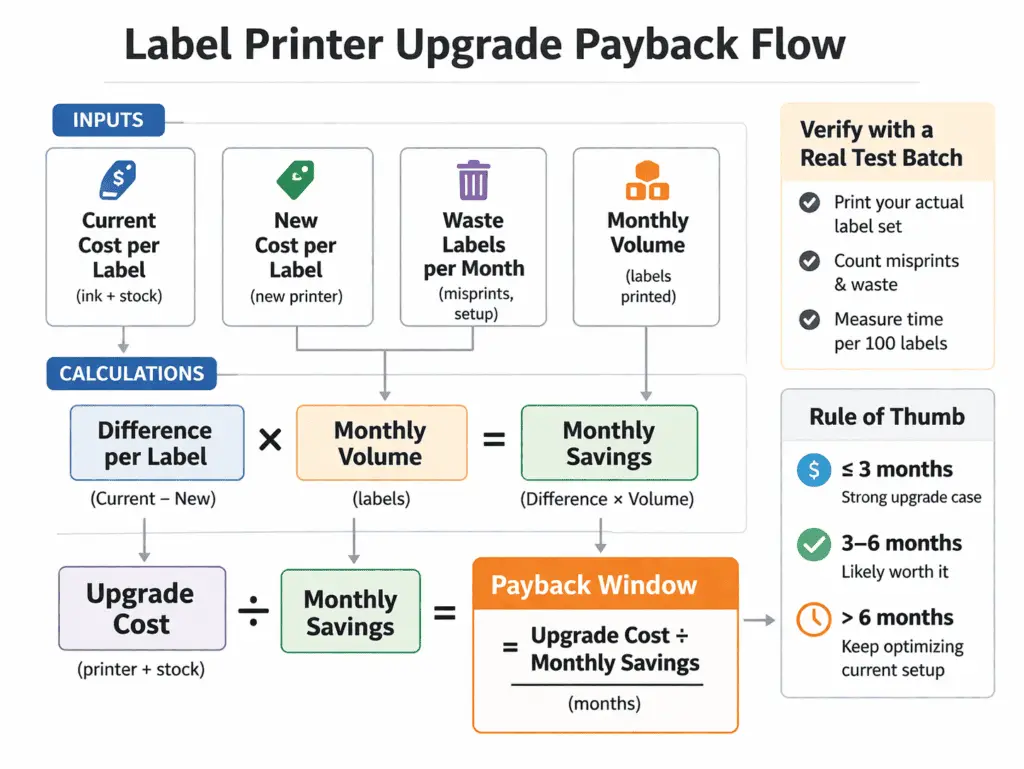
Upgrade when you repeat the same jobs often, depend on one stock, and spend enough on misprints, slow feeding, or reruns that a more dedicated setup pays back.
A simple ROI flow:
- Record your cost per label today (media + consumables + “waste” labels).
- Estimate your new cost per label with the printer and stock you’re considering.
- Multiply the difference by your monthly volume to get monthly savings.
- Divide the upgrade cost by monthly savings to get a payback window.
If your payback depends on perfect conditions, run a small real test batch and re-check waste rates.
Frequently asked questions
Can I print professional-looking labels on a basic home printer?
Yes, if your stock matches your printer and you lock in settings that give clean edges and readable small text.
Do I need the most durable setup for every candle?
Not always. Dry shelf use can work with a simpler setup, but frequent wiping, condensation, or oil contact call for tougher stock and a printer-and-media combination that stays legible after handling.
Is glossy always better for color?
Glossy can make color pop, but it can also smear and reduce small-text clarity on some inkjets. Matte can read better for warnings.
What’s the fastest way to cut label waste?
Use a test card, keep one “pass” sample, and only change one variable at a time when something goes wrong.